

Why I'm Reducing My Subscribers by 50%
Which subscribers should you keep, and which should you let go?

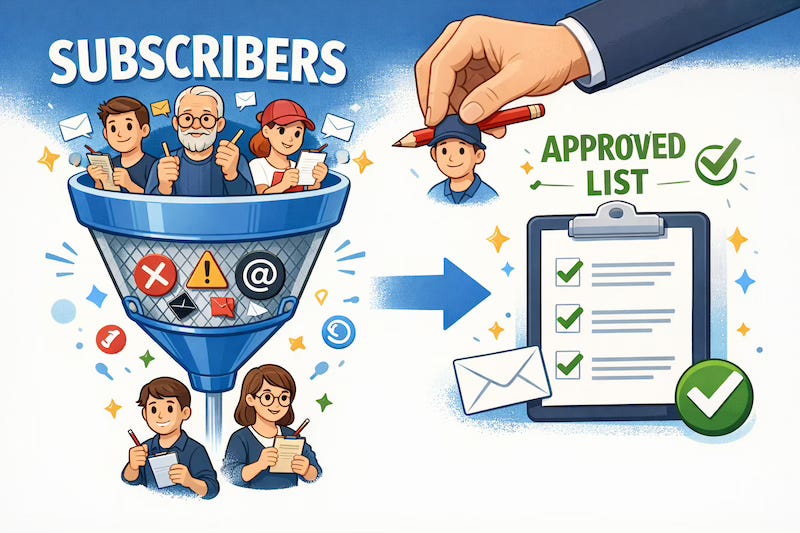
My email open rate is averaging only 12%. Surely my emails aren’t that dull? So I decided to investigate and here’s what I found.
First, I came up with some ideas for possible causes:
Legacy subscribers
Old/dead addresses (dropped emails)
Attention-seeking subscribers
Legacy subscribers
I was sure that the main reason for the low open rate was that I imported subscribers from previous mailing lists.
Cleaning legacy subscribers is one of the most effective ways to raise open rates and improve deliverability on Substack.
Deleting legacy subscribers helps and doesn’t hurt.
As a result, there will be:
Increased reported open percentage,
Improved actual inbox placement
Reduced future dropped emails
Optimise for audience quality, not raw subscriber count.
Old/dead addresses
When people change their email addresses without updating their subscription details, your emails will bounce.
These subscribers should be pruned because:
Dropped emails damage the sender’s reputation
A poor reputation causes more emails to land in spam
This results in fewer opens even among good subscribers
Attention-seeking subscribers
A few subscribers subscribe to your publication, hoping you’ll subscribe back.
These subscribers will have a very low or zero open rate and will lower your overall open rate.
Defining criteria
My next step was to define the criteria for removing subscribers:
Category 1 - Delete Immediately
Category 2 - Legacy Pruning
Category 1 - Delete Immediately
I used four criteria for this category:
Emails dropped > 0
Emails opened (6m*) = 0
Activity = 0
Free subscribers
If a subscriber meets all four criteria, these addresses will no longer receive your emails and are certainly dead.
*The number of emails opened over a specific period.
This period should be adjusted depending on how frequently you send emails. My recommendation is:
If emails are sent daily, change Critera 2 to ‘Emails opened (7d) = 0
If emails are sent weekly, change Critera 2 to ‘Emails opened (1 month) = 0
If emails are sent monthly, leave Criteria 2 as it is
Category 2 - Legacy Pruning
Subscribed > 6–12 months ago
Emails opened (30d) = 0
Activity = 0
Free
This high-confidence category should safely remove inactive legacy subscribers without reducing the number of loyal subscribers.
Last Chance
Before deleting, you can send a short re-engagement post:
“If you want to keep receiving this, just open this email.”
Then:
Delete everyone who doesn’t open within 7–10 days
This maximises fairness and metrics — but it’s optional.
Don’t worry about
Losing ‘future readers’
Hurting Substack growth signals
Paid subscriber loss (these criteria only eliminate free subscribers)
Substack’s algorithm and deliverability systems strongly favour:
Smaller, engaged lists over large, silent ones
Working with the data
The next step is to apply these criteria to your Substack data. You can find these by going to your Substack Home page and clicking ‘Subscribers’, which you’ll find under ‘Audience’.
Not all the data is shown here, but you can add columns by clicking ‘Display’, selecting additional data and clicking ‘Save’.
Some columns can be ordered by clicking the header of a selected column.
I found it overwhelming trying to analyse all this data, so I decided to use a Python script to do the hard work for me.
First, I needed to download a CSV file of all the subscriber data.
I did this by clicking the menu (three dots on the top right), followed by ‘Export’, selecting ‘Export all columns’ and clicking ‘Export’.
I renamed the CSV file to ‘subscribers.csv’, moved it to the same folder as the SubscriberAnalysis.py script and ran the script:
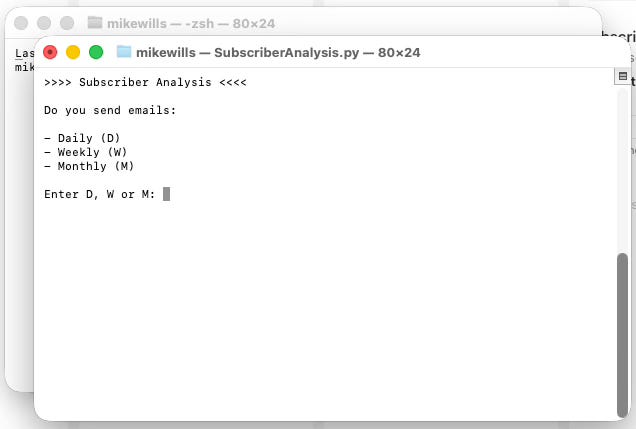
After entering D, W or M and clicking ‘Enter’, the script produced a list of Category 1 and Category Subscribers.
Paid subscribers can download this script from the Programs section of the Learning Pages Digital Vault.
Associate Members can request tailored versions of this script.
Removing Subscribers
The last step is to remove subscribers who meet your deletion criteria.
You can do this by returning to the Subscribers page.
Paste the subscriber’s email address in the search box at the top of the page, press Enter, select ‘Remove from list’ and click ‘Remove’.